The following article details backing up and restoring your BRIDGE CAST data.
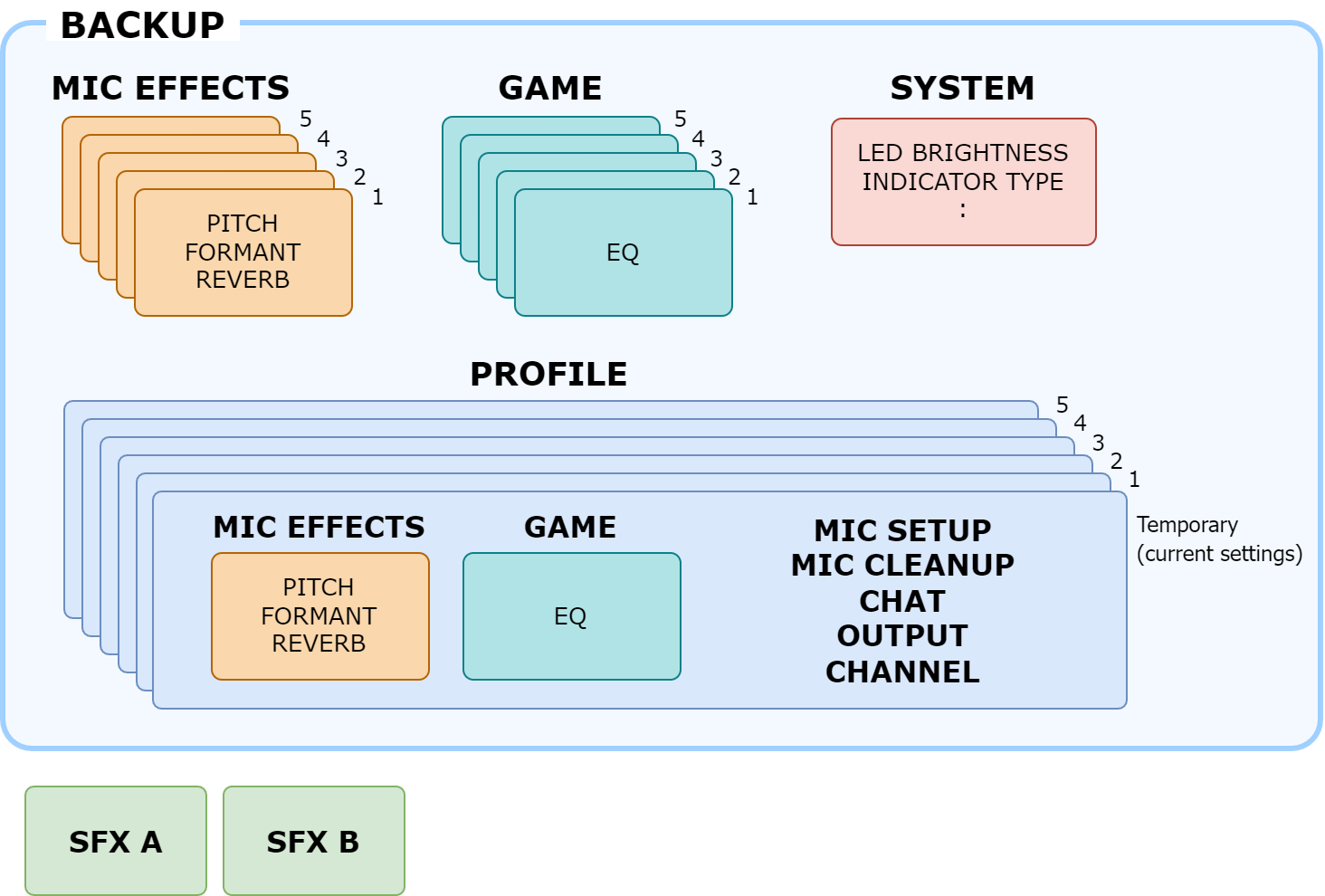
The settings that are backed up are shown in the illustration below:
- Note: Sound effects (the WAV files for SFX A and SFX B) are not backed up.
Backing up
-
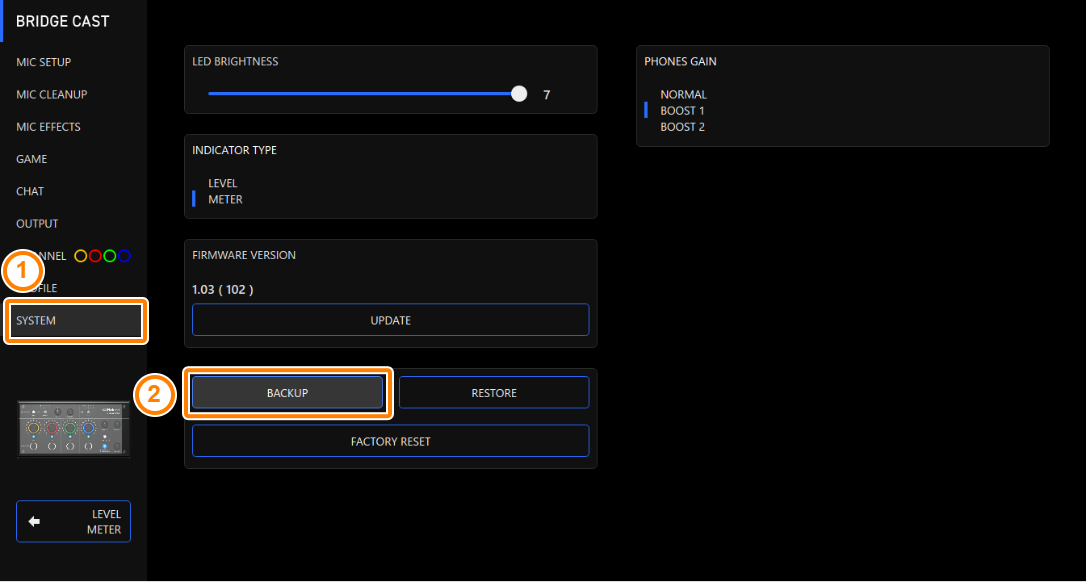
On the menu screen, click the “SYSTEM” tab and then click the [BACKUP] button.
-
In the Save dialog box, name the file, specify the save destination and then click the [Save] button.
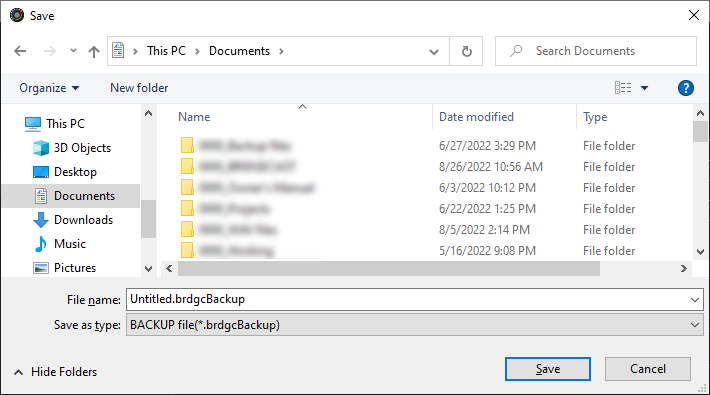
This backs up the file (.brdgcBackup).
Restoring
Here’s how to restore the settings for this unit that you backed up. Restoring the settings overwrites the current settings.
-
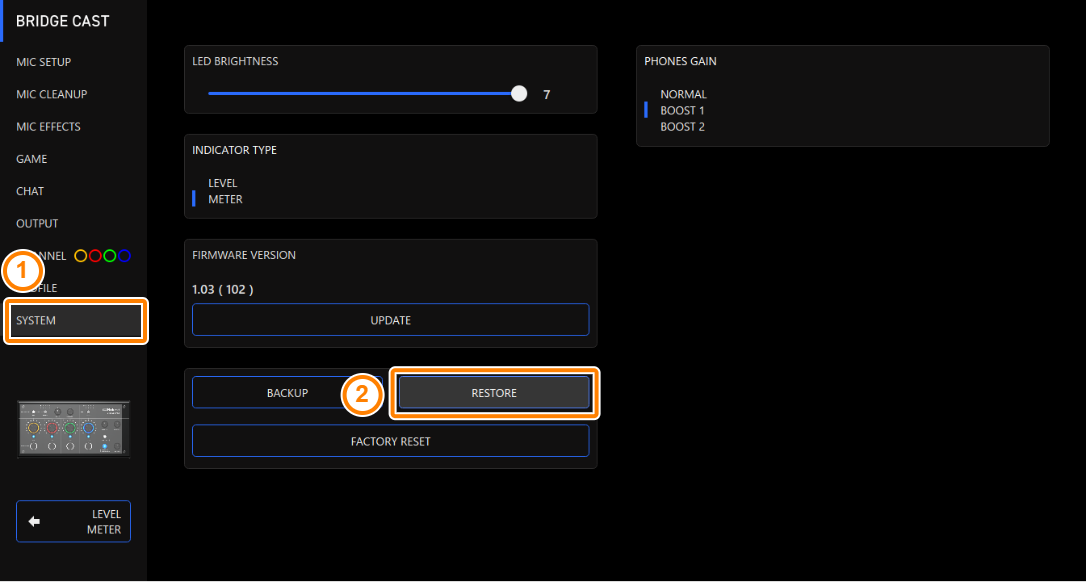
On the menu screen, click the “SYSTEM” tab and then click the [RESTORE] button.
-
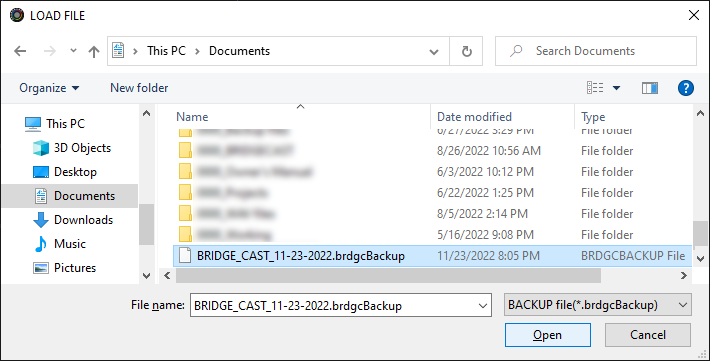
In the LOAD FILE dialog box, select the file that you wish to load (.brdgcBackup) and then click the [Open] button.
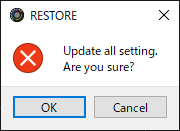
A confirmation message appears.
-
Click the [OK] button.
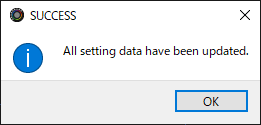
A confirmation message appears after the data has been restored.
-
Click the [OK] button to close the message.