SY-1000 : User Patch Backup / System Data Backup and transfer to a 2nd SY-1000 unit
What you'll need:
- SY-1000 (Main/1st unit)
- SY-1000 (Main/1st unit)
- SY-1000 (2nd unit)
- USB 2.0 A to B printer data cable and USB 2.0 port on your computer
(use a USB-C Totu Hub if needed).
- SY-1000 USB Device Driver:
Go to the SY-1000 Downloads web page, and download, extract and install the USB device driver for your specific computer OS and Version.
https://www.boss.info/global/products/sy-1000/downloads/
- BTS for SY-1000 software editor installed on computer.
(use a USB-C Totu Hub if needed).
- SY-1000 USB Device Driver:
Go to the SY-1000 Downloads web page, and download, extract and install the USB device driver for your specific computer OS and Version.
https://www.boss.info/global/products/sy-1000/downloads/
- BTS for SY-1000 software editor installed on computer.
Also download, extract and install the BTS for SY-1000 software editor.
Should read: "BOSS TONE STUDIO for SY-1000 Ver. 1.0.3 for Windows/macOS"
Should read: "BOSS TONE STUDIO for SY-1000 Ver. 1.0.3 for Windows/macOS"
Check and make sure the SY-1000 is updated to the latest firmware version, install the SY-1000 USB device driver, then install the BTS for SY-1000 and open on your desktop/laptop computer.
Backup the SY-1000 (1st unit) User Patches
First, create a backup of the SY-1000 1st unit onboard customized User Patches.
Connect the main SY-1000 (1st unit) to BTS for SY-1000 software editor,
via USB 2.0 A to B cable, to USB 2.0 A port on computer.
Go to and click on the LIBRARIAN, in the top menu bar, makes sure the app window is fully open,
Click on the DOWN ARROW in the upper right corner of the LIBRARIAN, this is the IMPORT button,
The IMPORT FROM window will pop up and select the SY-1000,
A window to CREATE LIVESET will appear, name the LIVESET.
For example: "SY-1000 MAIN PATCH BU" (or other unique name), press OK
There should then be a user patch IMPORT progress bar.
This should IMPORT all the current SY-1000 USER PATCHES and back them up off the unit.
If IMPORT is slow, or taking too long, you can alternatively do the following.
Since this is a full backup of all the USER PATCHES, if only backing up a 5 or 10 User Patches.
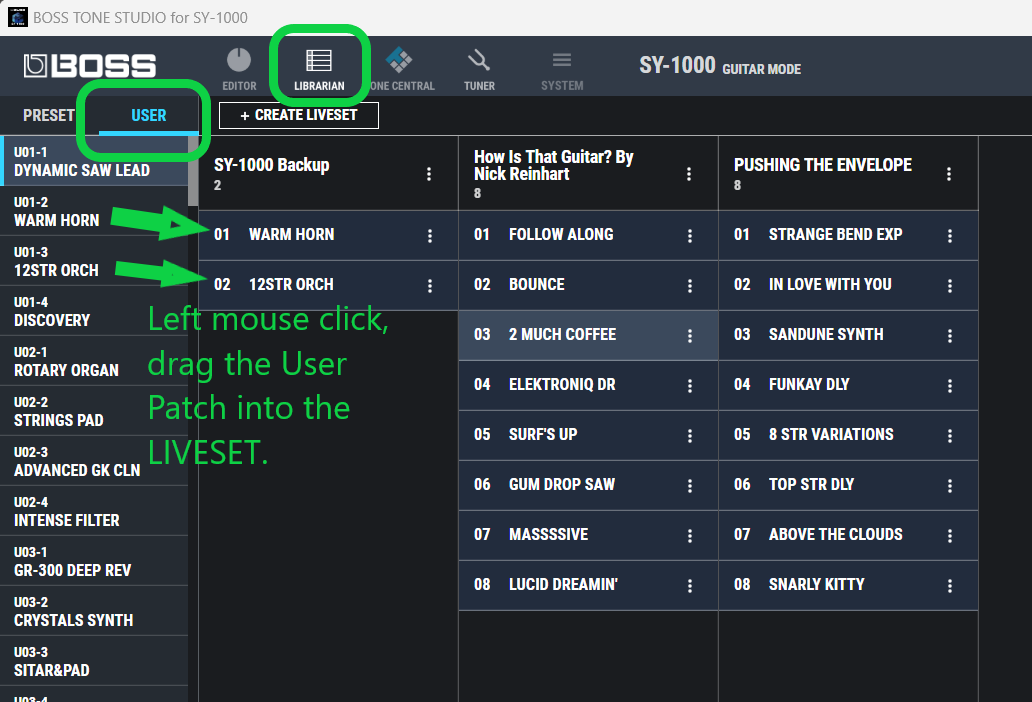
Then it may be quicker to CREATE LIVESET, name it, and then left mouse click, select, and drag/drop the 5 or 10 USER PATCHES individually, one at a time, drag them into the LIVESET.
This will add them to the LIVESET, and also create a backup.
So there's a backup in the LIBRARIAN LIVESET, a backup on the computer desktop/drive, and a backup saved into Cloud Storage. This is good to have triple coverage.
Instructions for a full SY-1000 System Data Backup, and transfer, from one SY-1000 unit, to a second SY-1000 unit.
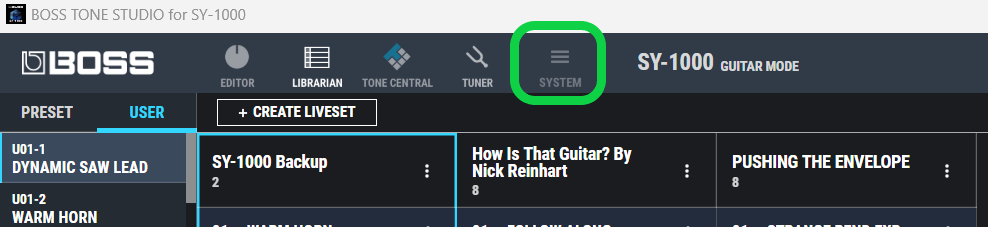
Then in the SYSTEM menu column select: SYSTEM DATA BACKUP, and press BACKUP: TO FILE icon.
This will open the computer directory window, check the name,
and SAVE out a 'SY-1000 MAIN BU.SDB' file / SYSTEM DATA BACKUP file,
for the entire SY-1000.
Since this is a full backup of all the USER PATCHES, if only backing up a 5 or 10 User Patches.
Then it may be quicker to CREATE LIVESET, name it, and then left mouse click, select, and drag/drop the 5 or 10 USER PATCHES individually, one at a time, drag them into the LIVESET.
This will add them to the LIVESET, and also create a backup.
Once the USER PATCH backups are in a LIVESET and transferred out of the unit, these should then be in the BTS > LIBRARIAN > in a unique named LIVESET.
The LIVESET can then be EXPORTED to the computer hard drive.
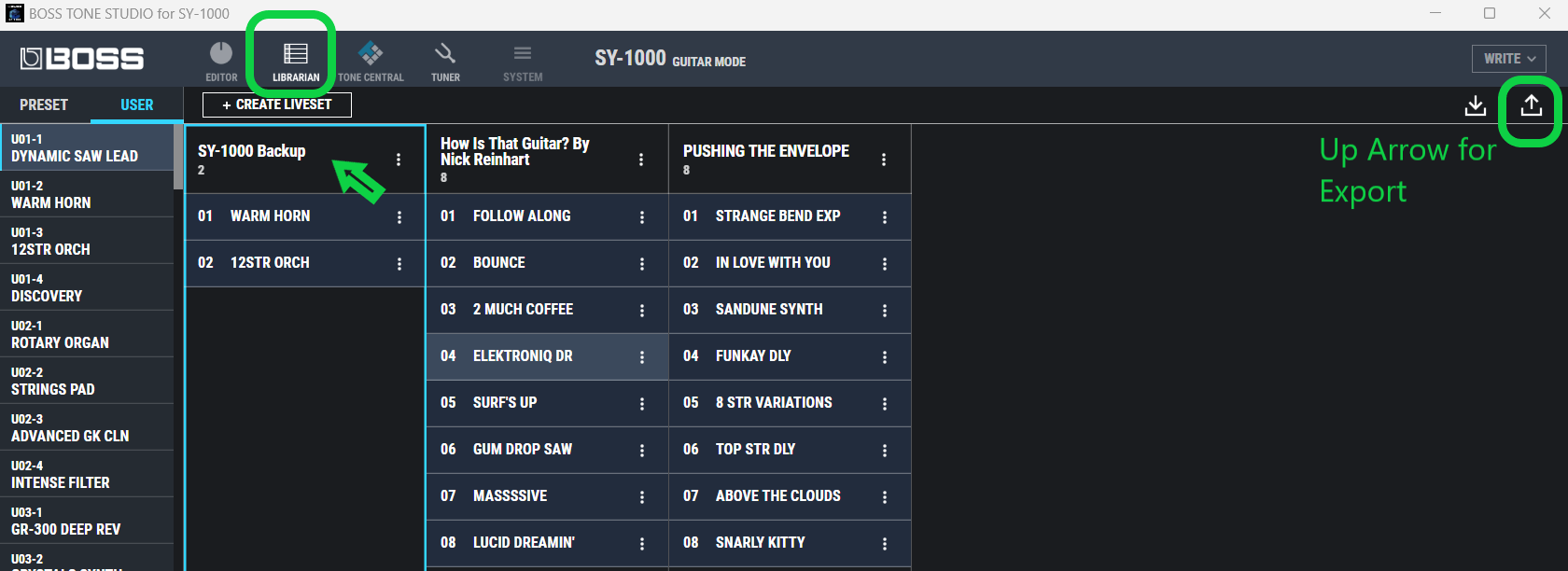
Select the LIVESET, and press the UP ARROW for EXPORT.
EXPORT TO: menu, select the LIVESET, "SY-1000 MAIN PATCH BU" then choose the UP ARROW and EXPORT choose to FILE/computer.
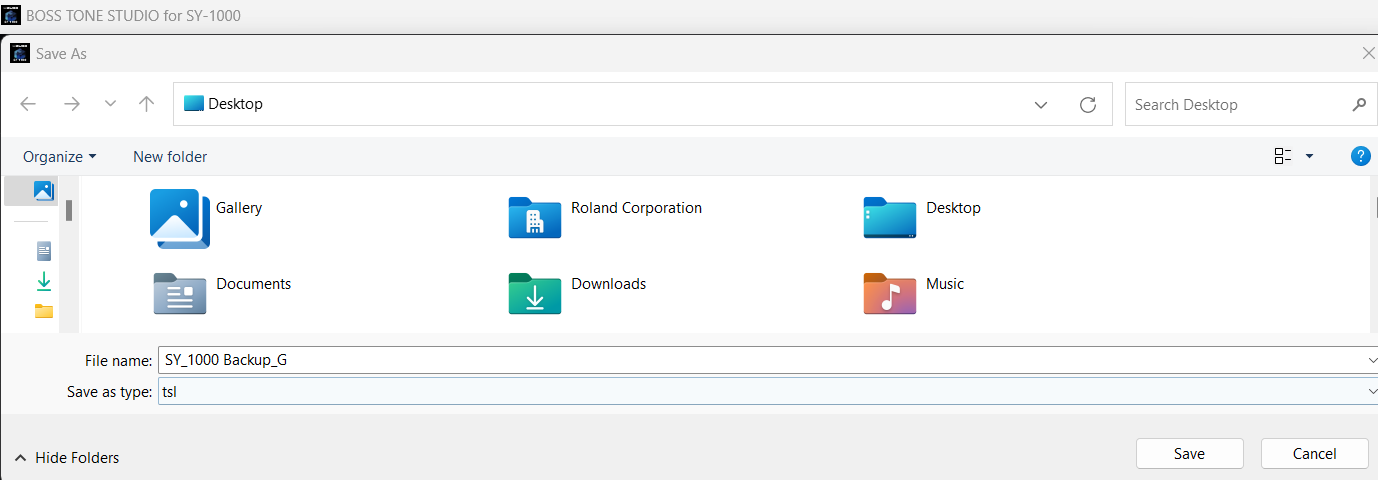
This will pull up a computer directory screen, check file name and EXPORT/SAVE the .TSL file on to computer desktop.
The LIVESET can then be EXPORTED to the computer hard drive.
Select the LIVESET, and press the UP ARROW for EXPORT.
EXPORT TO: menu, select the LIVESET, "SY-1000 MAIN PATCH BU" then choose the UP ARROW and EXPORT choose to FILE/computer.
This will pull up a computer directory screen, check file name and EXPORT/SAVE the .TSL file on to computer desktop.
This will effectively save the LIVESET of user patches into a .TSL file/TONE STUDIO LIBRARIAN file.
Good to have a copy of this on the computer drive, and save this up into Cloud Storage, just in case.
Good to have a copy of this on the computer drive, and save this up into Cloud Storage, just in case.
So there's a backup in the LIBRARIAN LIVESET, a backup on the computer desktop/drive, and a backup saved into Cloud Storage. This is good to have triple coverage.
Instructions for a full SY-1000 System Data Backup, and transfer, from one SY-1000 unit, to a second SY-1000 unit.
Using main SY-1000 (Main/1st unit) connected with BTS for SY-1000 software editor.
Go to and select the SYSTEM menu item.
Go to and select the SYSTEM menu item.
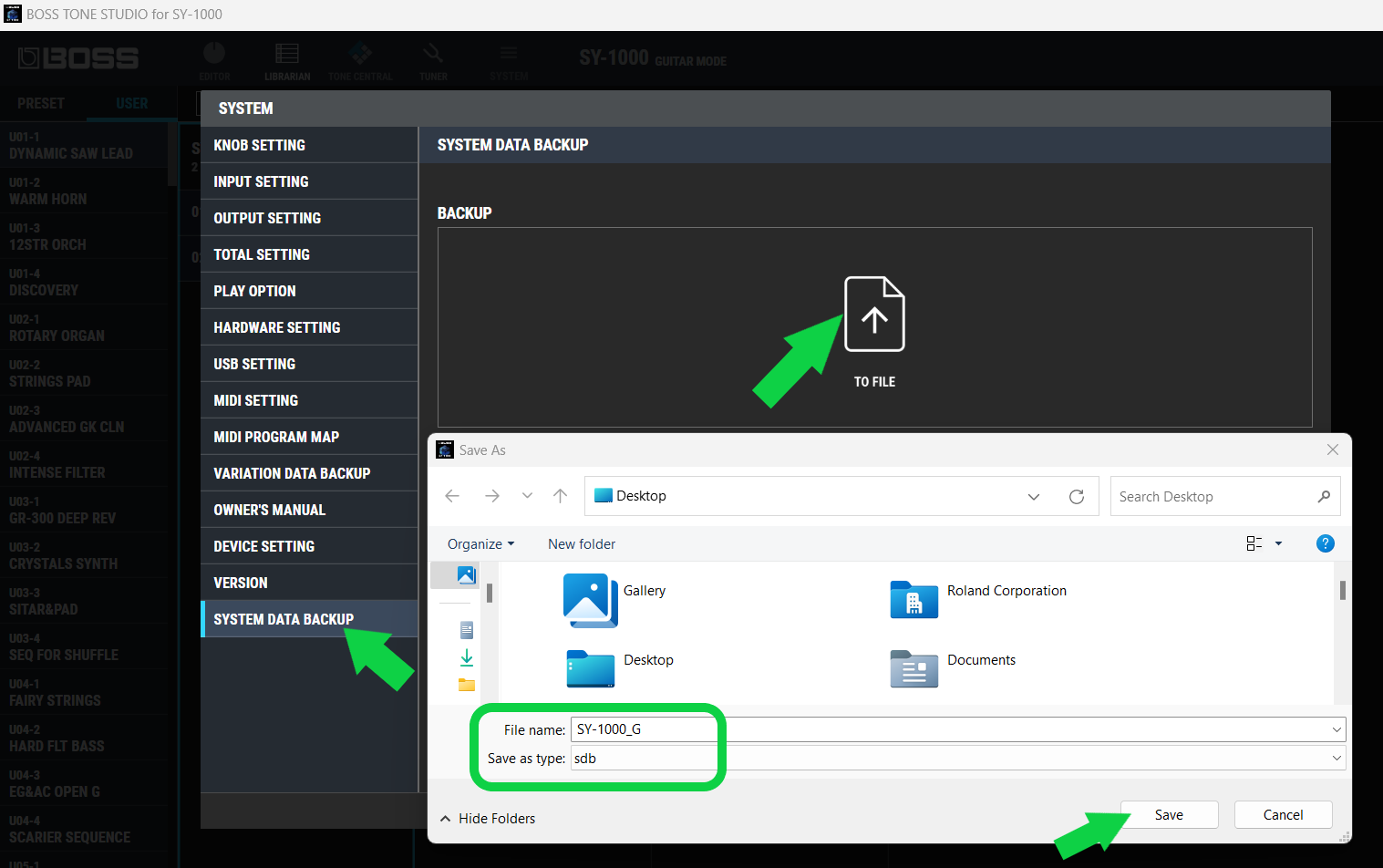
Then in the SYSTEM menu column select: SYSTEM DATA BACKUP, and press BACKUP: TO FILE icon.
This will open the computer directory window, check the name,
and SAVE out a 'SY-1000 MAIN BU.SDB' file / SYSTEM DATA BACKUP file,
for the entire SY-1000.
Once completed, go ahead and disconnect the SY-1000 (Main/1st unit).
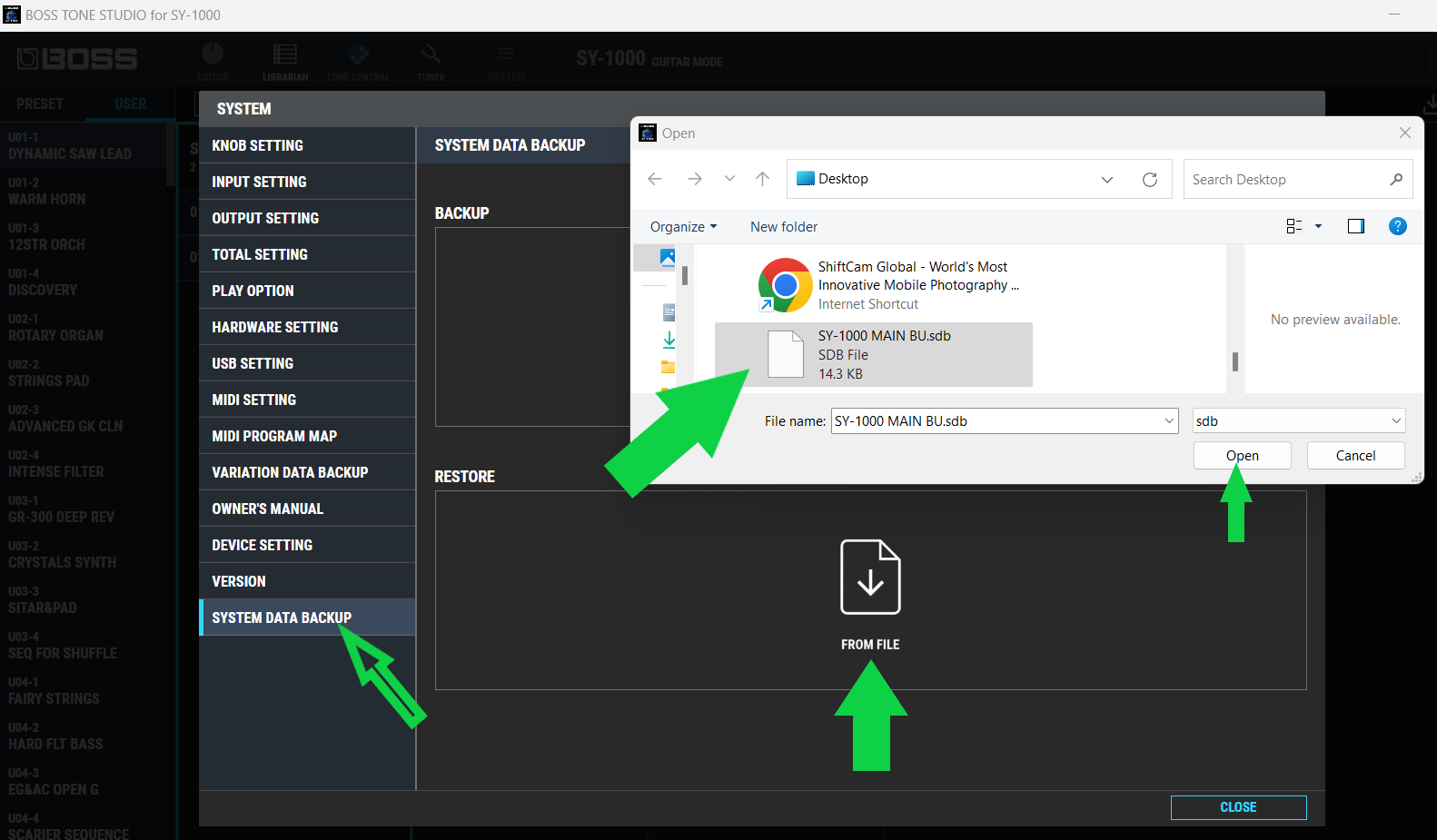
Connect the SY-1000 (2nd unit) and do the opposite, in the SYSTEM DATA BACKUP menu, choose RESTORE: FROM FILE, and load/open the previously
saved 'SY-1000 MAIN BU.SDB' file.
saved 'SY-1000 MAIN BU.SDB' file.
This will make a mirror duplicate backup of the 1st SY-1000 and the 2nd SY-1000 should be identical.
You'll now have two identical SY-1000 units and all the custom USER PATCHES are backed up in the LIBRARIAN LIVESET/S, on the computer desktop/drive, and also in Cloud Storage.
You'll now have two identical SY-1000 units and all the custom USER PATCHES are backed up in the LIBRARIAN LIVESET/S, on the computer desktop/drive, and also in Cloud Storage.