With Android 11 and above, Google is mandating their Scoped Storage rules which only enable apps to read and write from their secure folder. Users who are updating from an older version of Zenbeats will be prompted to move their existing Zenbeats User folder to the secure location and can do so in a few simple steps. Please Note: Before updating it is recommended that you make a backup copy of your Zenbeats User folder. This can be done using your device's built-in files app.
- Download the latest version of Zenbeats from the Google Play Store.
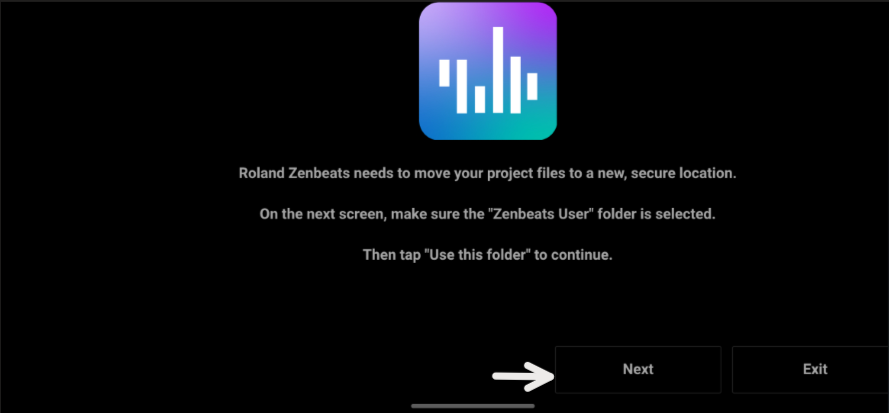
- Launch Zenbeats and read the prompt, then tap "Next".
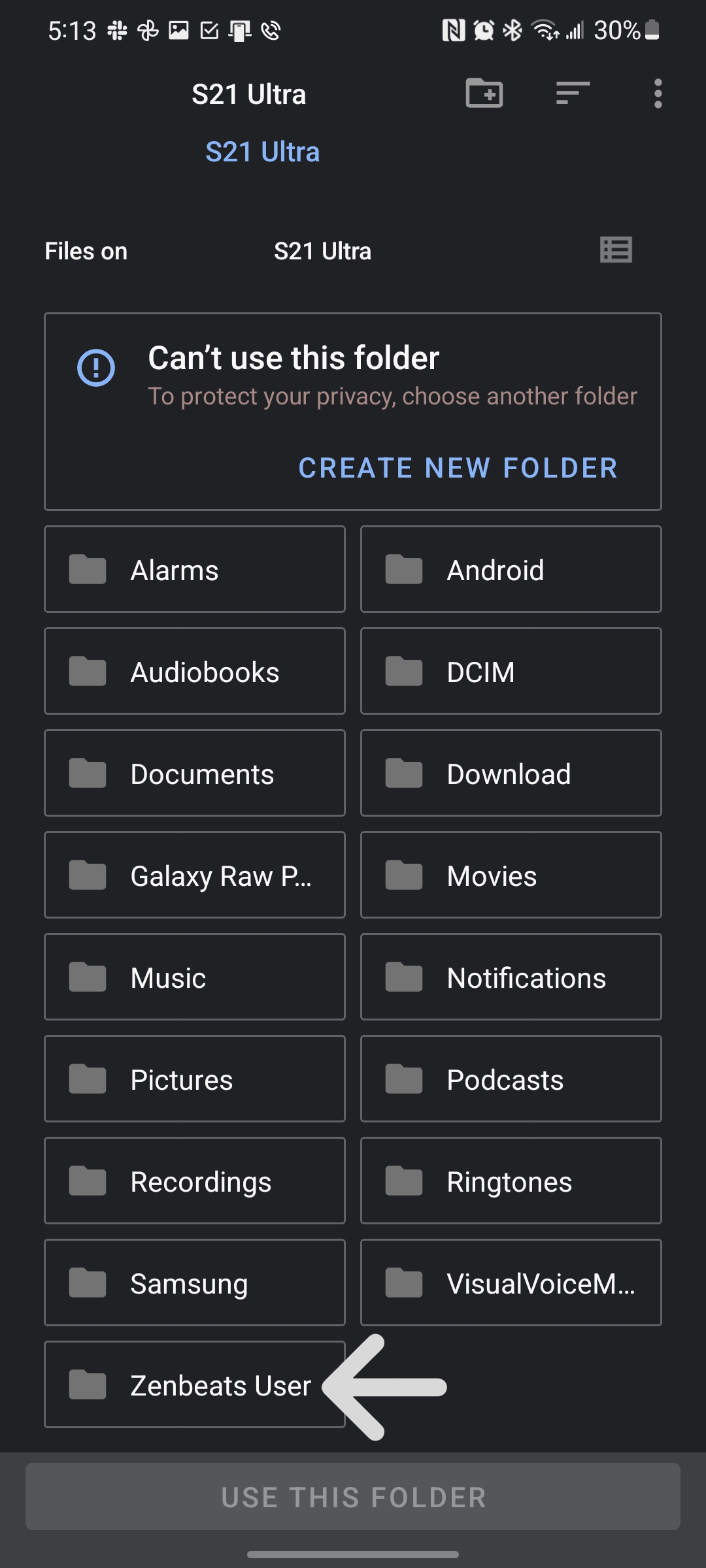
- File Browser shows the Internal Storage. Make sure Zenbeats User is selected. If the root folder is displayed like this, tap to select on the Zenbeats User folder.
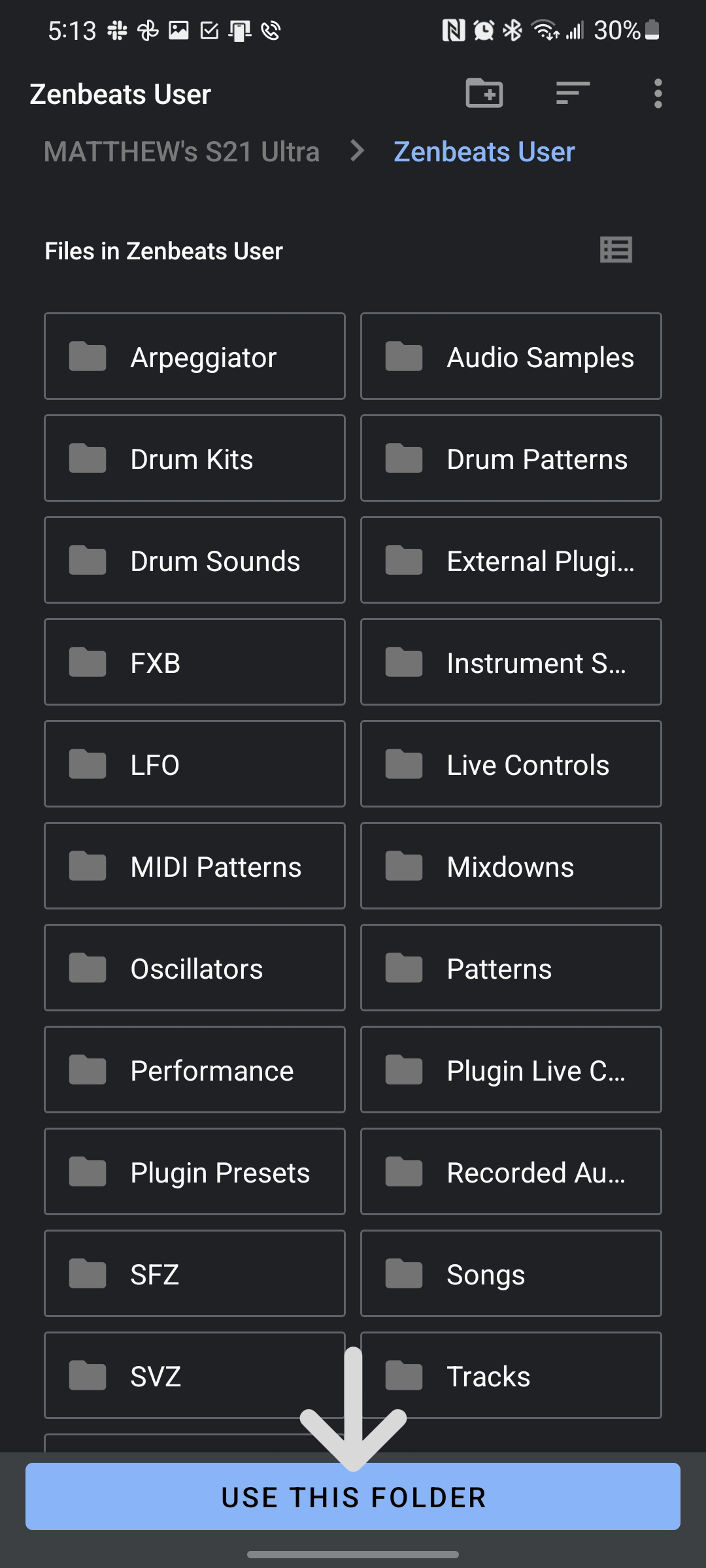
- If the Zenbeats User folder is selected your file browser should look like this. From there, tap “Use this Folder”.
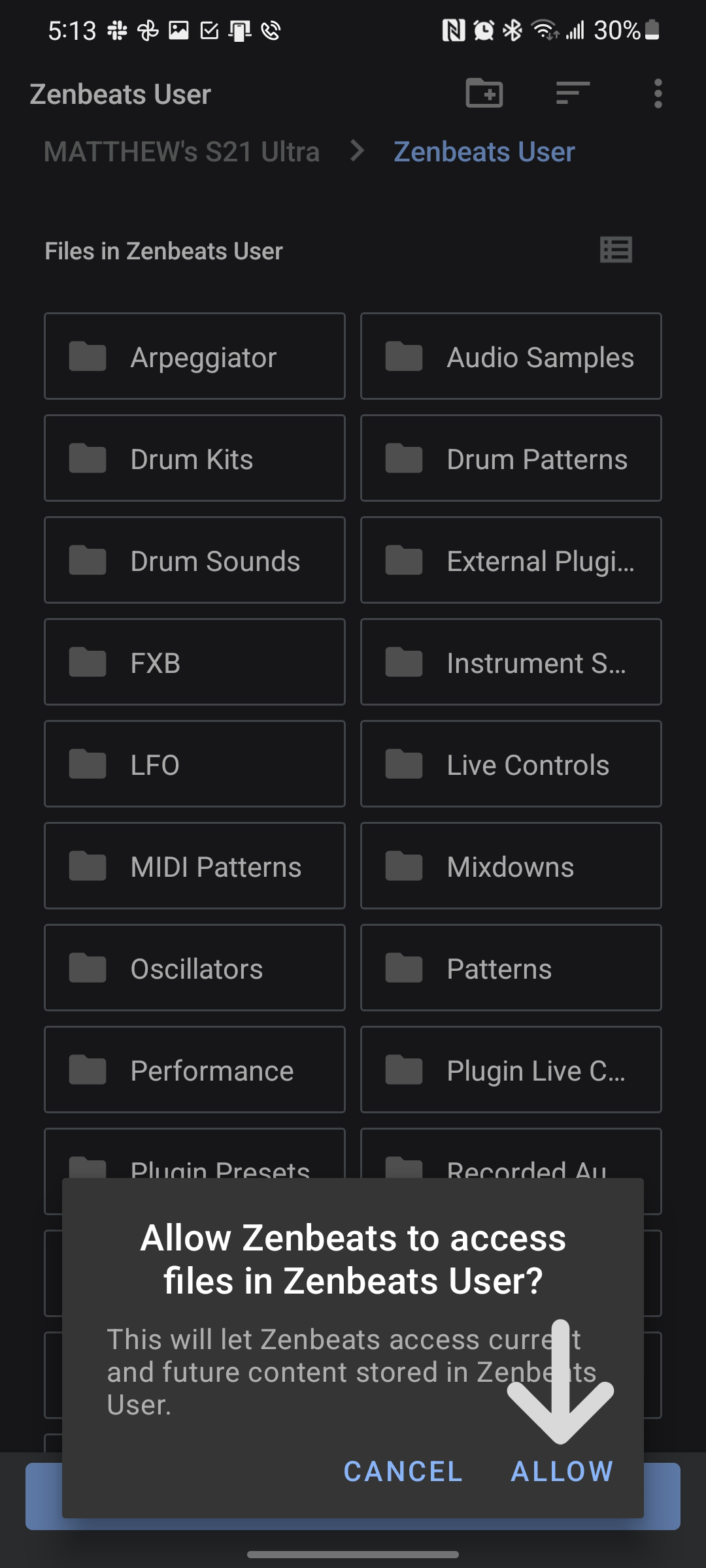
- Tap “Allow” when prompted to give Zenbeats access to the folder.
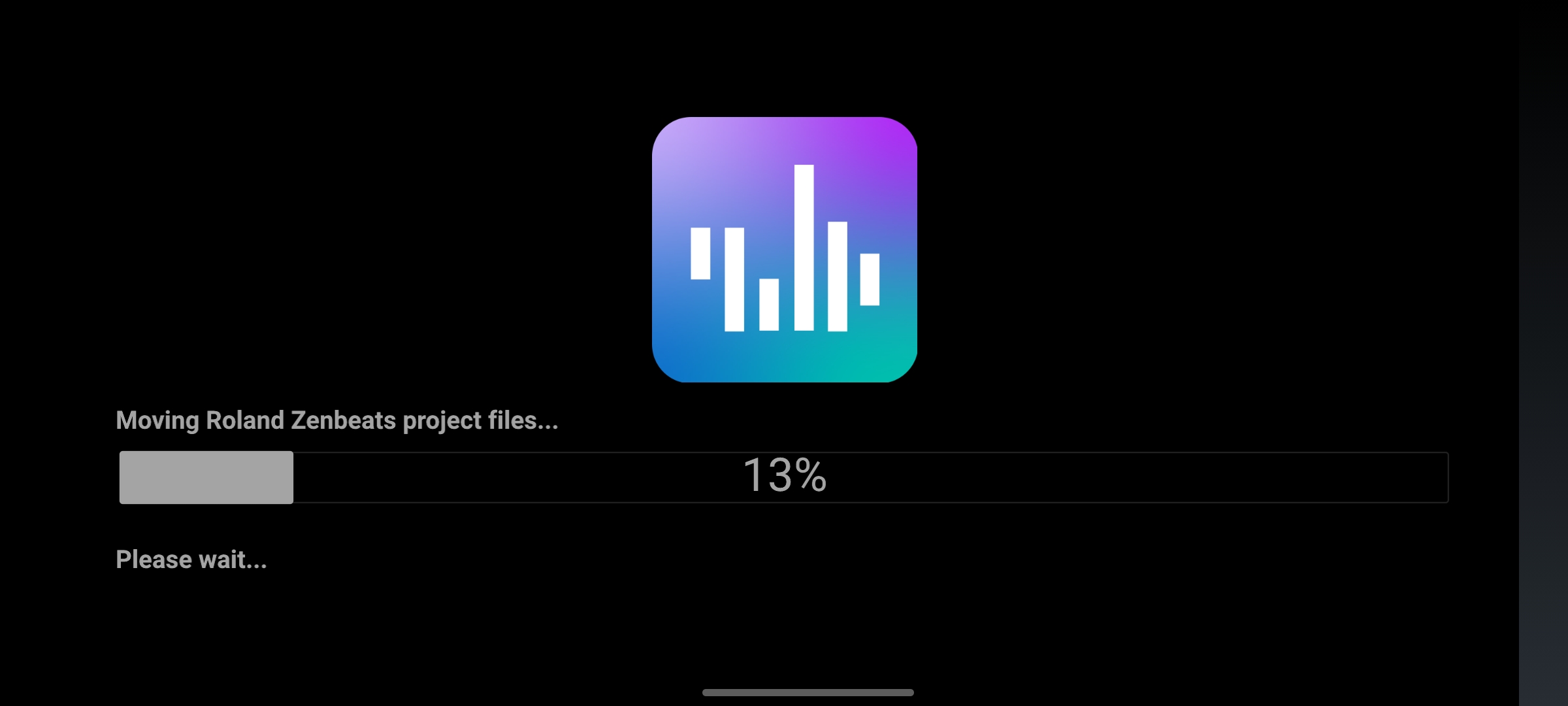
- This will initiate the transfer. Once it is completed, you’re good to go!
Uninstalling Zenbeats Warning: With this new Google-mandated change, uninstalling Zenbeats on your device will erase your Zenbeats User folder and all your song content. Be sure to save Song files and Mixes to either Google Drive or Microsoft OneDrive before uninstalling.