Overview
You can now import and export your custom Scenes and Setlist in Galaxias from the My Content section in the main menu. This makes it easier to share your Galaxias creations with others.
Creating an Export
To get started, go to the Main Menu, select My Content then Export My Content.
This will display the Export My Content wizard, where you can select any (or all) of your custom scenes and setlist files to export.
Once you've selected the content, enter a name for the export zip file, then tap Select Folder to specify where you want to save the export file. You can choose any location on your device, even your favorite cloud storage folder. From there, click export and you're done.
Importing Content
There are two ways to import content packs into GALAXIAS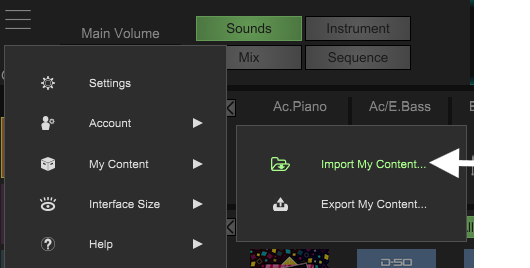
Method 1: Easy Import via drag and drop
The fastest way to import a GALAXIAS compatible zip file is to simply drag and drop it onto the main GALAXIAS window. See below.
Method 2: Importing from the Main Menu/My Content option
Go to the Main Menu, select My Content and then Import My Content.
This will display the import wizard which will give you a preview of all zip files in your downloads folder.
GALAXIAS will only support zip files created in GALAXIAS. Any attempt to import an unsupported zip will not work.
If the zip file you want to import is not in the downloads folder, you can click the Import Other button to select a zip stored in another location.
Once a supported zip is selected, you will see the Import My Content wizard.
From here, just select any or all of the Scenes and Setlists you want, then click the Import button.